 Let’s say you have two text files that are pretty similar in content and you want to find out what the differences are between those two. You can easily do so using Notepad++.
Basically, once you have Notepad++ installed, here is what you do:
1. Open up the two files that you want to compare in Notepad++.
2. Goto Plugins > Compare > Compare
3. That’s it! Both files will show up side by side and you will see the differences highlighted.
Update 1: For those who have downloaded newer versions and can’t find the Plugins > Compare > Compare menu, please read how to get compare plugin back into notepad++.
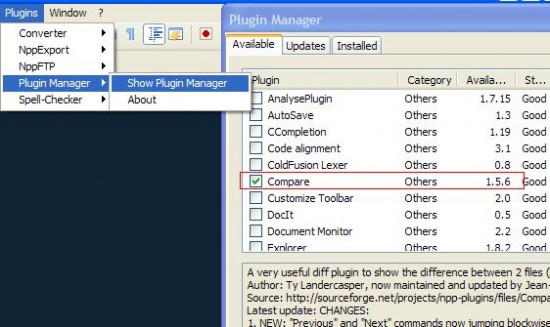
Update 2: There’s now an even easier way to get new plugins such as the “compare plugin” installed into Notepad++. Just use the new Notepad++ Plugin Manager introduced since Notepad v5.6.
Go to the Plugins menu > Plugin Manager , check the Compare checkbox and press install.
Tips: You can also use winmerge to compare two text files.
10 Most Useful Tips for Notepad++
Enter your email address below and get 10 simple and effective notepad++ tips to supercharge your productivity today.
Joachim says
Thanks for the updates for newer versions. Plug in Manager made it a cinch!
ronzie9 says
OK, it now installs without the warning, so I guess it must have been updated. Thanks!
ecarlevaro says
Thanks!
sdfsf says
and how does it compare things? it doesnt even color anything, just scrolls 2 documents up and down at the same time…
Ron Zie says
On mine, it colors the differing lines a yellowish shade and puts an exclamation point inside a yellow triangle icon in the area where the line numbers appear. I don’t think I have any special settings, just the defaults.
Tuomo says
—————————
PluginsManager::runPluginCommand Exception
—————————
Unknown exception
—————————
OK
—————————
Unknovvvn says
Thanks, it was very useful. Time saving information
Colin W says
Thanks for the heads up David – nice plugin.
Alvin says
Thanks David Tan…YOU DA MAN.. Happy success in your life buddy.
vishnukanth says
really use full info., thank you.
Sanjeev Kumar Yadav says
Nice Info
Roy says
Installation of Compare failed on Notepad++ v6.9.2
Tristan says
Thanks, it worked for me. The comparison and highlighting is really good, only additional features are missing – and one can’t use Notepad++ as far as I know on mobile devices.
Thiers Halliwell says
Plug-in just discovered and looks very useful, except that moving from diff to diff with Ctrl-PageUp/Down doesn’t work (for me) although Shift-Ctrl-PageUp/Down does jump between first and last as intended
Steve Cohen says
Suppose you have MORE than two files open? How do you pick which ones to compare? Useful would be some way of picking them.
Mike says
Did anyone ever answer this last question ?
dhiraj says
i had to install the plugin twice, to get it working.
T. T says
Totally useless, outdated.
Anthony Banks says
Great option. Are you able to save the results of the difference?
Hasan Ibrahim says
Awesome plugin. Thanks for your advice.